Very Old Tenvis TH611 Webcam Working With Frigate - Even PTZ
I had a two-pack of Tenvis webcams that included wall mounts and hardware. The webcam models are TH611 and are “PTZ”. They were originally purchased in 2019. It was a slog, but I finally got them configured for Frigate.
Tenvis TH611 models
The year is 2026. And Tenvis apparently still offers a “TH611” model. It is a version 4 of the hardware according to their naming, so it’s entirely different platform than what I have.
The newer model versions have something called a “World Wide Web” interface where a configuration page can be accessed in something called a “Web Browser”, but the models I have do not offer this technology. Still, people seem to have reported older models like mine working in Frigate or in Home Assistant, but the accuracy of this evidence was piecemeal.
“Unboxing”
I had put them back them in original packaging when I last took them down. They were no longer connected to the Tenvis cloud (although at one time I had tried this to get remote access to the camera stream that this offered). Now they (still) have a password-protected local admin account.
More on that later. Anyway, these webcams have Ethernet (though not PoE) and Wifi networking, and a 5V barrel non-USB connector power supply. I plugged into wired Ethernet and plugged in power and powered on.
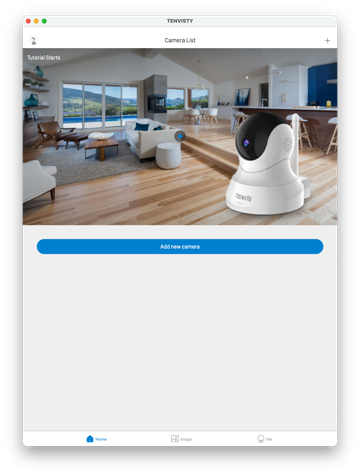
In their iOS app named “Tenvisty”, it is possible to configure new or existing cameras. On my iphone I didn’t have it installed anymore, so I re-downloaded it. Crazily, when I launched the Tenvisty app, the two cameras were right there all ready to go, as if no time had passed. “Check New Firmware” revealed I am already using the latest version (1.3.15.29 ). Haha.
The Pan-Tilt-“Zoom” (spoiler alert: these models do not have a zoom function) works in the iOS app. They are marketed as 720p (1280x720) cameras.
Googling for Home Assistant support and for Frigate support
On the Home Assistant forums there is a post from December 2019: Tenvis TH661 IP Camera, Anybody got this working?. OK, promising.
Someone even has documented the PTZ API commands that they are using with theirs. But there is talk of web page interface and really new versions of firmware and so it is unlikely that many of the responses apply. MY CAMERAS DO NOT HAVE THE HTTP PORT :80 OPEN ON THE DEVICES. However, they do have port :554 (rtsp) open, which means that they probably can stream RTSP. And indeed, they do. Just need the admin account password, and the proper URL and then they should work, right?
For Frigate, there are two main protocols for interacting with webcams: RTSP for streaming videos, and ONVIF which used to reveal capabilities and control them (think: panning function).
To start with, let’s try to stream a video in frigate. There are two profiles:
- 1280x720:
rtspurl path/11 - 640x360:
rtspurl path/12
go2rtc:
  streams:
    tenvis_great_room: "rtsp://admin:admin@192.168.10.75:554/11"
    tenvis_great_room_sub: "rtsp://admin:admin@192.168.10.75:554/12"
    ...

cameras:

  tenvis_great_room:
    enabled: true
    ffmpeg:
      inputs:
        - path: rtsp://127.0.0.1:8554/tenvis_great_room_sub
          input_args: preset-rtsp-restream
          roles:
            - detect
        - path: rtsp://127.0.0.1:8554/tenvis_great_room
          input_args: preset-rtsp-restream
          roles:
            - record
    detect:
      enabled: false
That works great. It took me QUITE a while of fiddling and googling (and had to find my admin password in a copy of 1Password 7 that is in read-only mode since I moved away from them some time ago) but many sources had those two RTSP protocol and URL paths correct.
But what about ONVIF support? Without it (or something like it), the PTZ capabilities will be unavailable in Frigate and Home Assistant. ONVIF is typically served on port :80 or port :443 according to the massive majority of webcam implementations out there. Which makes sense, since ONVIF a SOAP web service. But I didn’t know that or anything resembling that at the time I was starting on this. And most posts resulting from search engine queries were just complaints about that they couldn’t get PTZ working from third-party software with this camera model.
But the app certainly is able to control the webcams. Are they using a proprietary protocol? Again, web searches didn’t leave any cookie crumbs out there for me to follow in this regard. So I tried a port-scan of a camera to see if any ports other than port :554 were open (e.g. Tapo webcams serve ONVIF on port :2020) First I tried nmap to do an exhaustive scan. While I was waiting for that to do its supposed magic, I also tried netcat (nmap scan never returned any ports, and I eventually quit it).
> nc -zv 192.168.10.74 1-1000 |& grep -v "Connection refused"
Connection to 192.168.50.74 port 554 [tcp/rtsp] succeeded!

> nc -zv 192.168.10.74 1001-10200 |& grep -v "Connection refused"
Connection to 192.168.50.74 port 8999 [tcp/bctp] succeeded!
You can have netcat try to connect to a host on a range of ports, and it will report its attempts. And wouldn’t you know it, I finally had a clue to follow. It listens on port :554 (but we already knew that!) It also listens on a port :8999 and it seems that port being open could mean that a web page or something is there… Let’s try some basic connections.
curl -v http://admin:admin@192.168.10.74:8999/
*   Trying 192.168.10.74:8999...
* Established connection to 192.168.10.74 (192.168.10.74 port 8999) from 192.168.10.8 port 63020
* using HTTP/1.x
* Server auth using Basic with user 'admin'
> GET / HTTP/1.1
> Host: 192.168.50.74:8999
> Authorization: Basic YWRtaW46YWRtaW4=
> User-Agent: curl/8.18.0
> Accept: */*
>
* Request completely sent off
* Empty reply from server
* shutting down connection #0
curl: (52) Empty reply from server

curl -v http://admin:admin@192.168.10.74:8999/onvif/device_service
*   Trying 192.168.10.74:8999...
* Established connection to 192.168.10.74 (192.168.10.74 port 8999) from 192.168.10.8 port 62994
* using HTTP/1.x
* Server auth using Basic with user 'admin'
> GET /onvif/device_service HTTP/1.1
> Host: 192.168.10.74:8999
> Authorization: Basic YWRtaW46YWRtaW4=
> User-Agent: curl/8.18.0
> Accept: */*
>
* Request completely sent off
* Empty reply from server
* shutting down connection #0
curl: (52) Empty reply from server
Bummer. Does not seem to a normal web server. But I don’t know enough on how ONVIF is supposed to work to rule it out. So now I am armed with this tidbit of knowledge that port :8999 is doing something in these devices. and eventually the Google and Github databases came through for me.
In a ZoneMinder (another NVR software package) github bug report: ONVIF probing camera not detected , TH661 and 8999 were mentioned together. It was bug report dealing with a perl script zmonvif-probe.pl that is maintained within ZoneMinder. This script is used to probe network/networked devices and reveal information about them. Cool! So I put together that maybe I could run this script targeting my TH611.
There is a docker image – well, I was working from an Apple Silicon Mac, so needed to source an arm64 docker image– that can be used to run a full ZoneMinder install, that interesting zmonvif-probe.pl script included therein.
I have been using OrbStack container app as a replacement for official Docker Desktop on my macOS host for a while. It turns out, OrbStack CAN USE -net=host mode on macOS! which means that you can ignore trying to do convoluted networking stack workarounds to host and run container services as if they’re listening on the native host ports. Anyway, here’s was I got to work to run that diagnostic script on macOS:
# this includes an ARM64 build that the official ZoneMinder does not
docker run --net=host klutchell/zoneminder

# now, in another terminal session
docker ps
CONTAINER ID   IMAGE
105014d76de7   ...

# using the perl script to try to read profiles as if it is running ONVIF there
docker exec -it 105014d76de7  /usr/bin/zmonvif-probe.pl -v profiles http://192.168.10.74:8999/onvif/device_service 1.1 admin admin
Received message:
<GetProfilesResponse xmlns="http://www.onvif.org/ver10/media/wsdl"><Profiles token="PROFILE_000" fixed="true" ...
PROFILE_000, PROFILE_000, H264, 1280, 720, 15, rtsp://192.168.10.74:554/o0_3781
PROFILE_001, PROFILE_001, H264, 640, 360, 15, rtsp://192.168.10.74:554/o1_3782

# this one errors, but the camera returns a whole SOAP message describing the PTZ capabilities
docker exec -it 105014d76de7  /usr/bin/zmonvif-probe.pl -v move http://192.168.10.74:8999/onvif/device_service 1.2 admin  admin
>>> error message here ignored <<<
<?xml version="1.0" encoding="UTF-8"?>
<soap:Envelope xmlns:soap="http://www.w3.org/2003/05/soap-envelope"
...
<soap:Body>
    <tptz:GetNodesResponse>
...
   </tptz:GetNodesResponse>
</soap:Body> </soap:Envelope>
Holy Cow! So it IS running ONVIF interface on port :8999.
Add ONVIF section to Frigate config
In our Frigate config.yaml, we can now put an ONVIF section that lets Frigate know it can talk to this camera using ONVIF protocol. This is the same as above, with a onvif: section added.
cameras:

  tenvis_great_room:
    enabled: true
    ffmpeg:
      inputs:
        - path: rtsp://127.0.0.1:8554/tenvis_great_room_sub
          input_args: preset-rtsp-restream
          roles:
            - detect
        - path: rtsp://127.0.0.1:8554/tenvis_great_room
          input_args: preset-rtsp-restream
          roles:
            - record
    detect:
      enabled: false

    onvif:
      host: 192.168.10.75
      port: 8999  # tenvis quirk
      user: admin
      password: "admin"
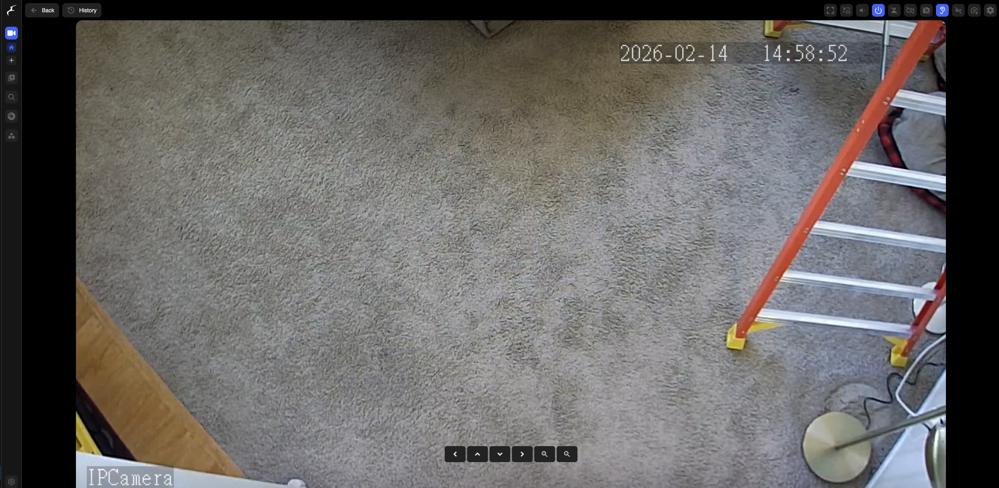
And in the Frigate view for this camera, you can see the direction arrow buttons overlayed on the image. And they function!